

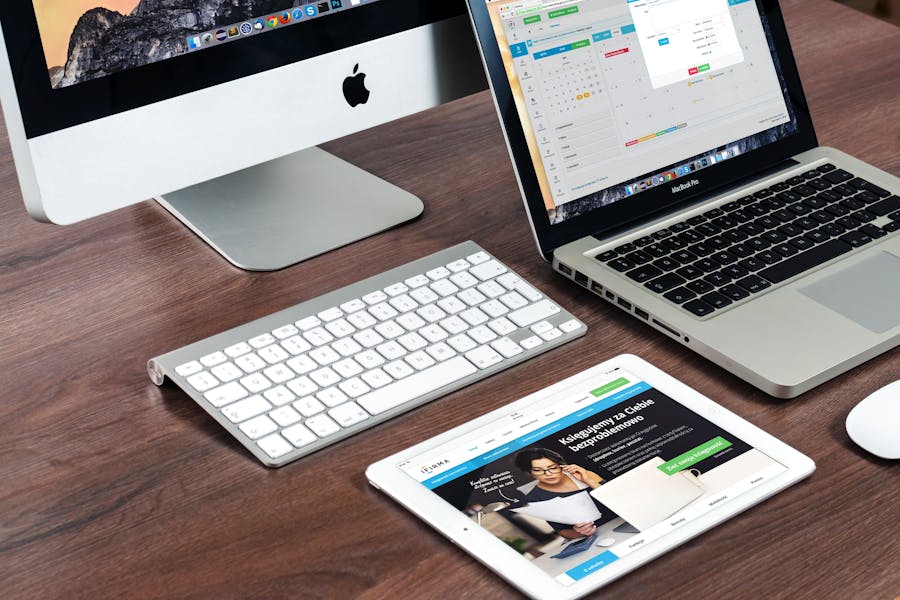
Mac running slow is one of the most frustrating things to deal with, especially when you’re trying to get work done. The good news? You don’t need to be a tech expert to fix it. In this guide, I walk you through simple, beginner-friendly solutions that actually work. No jargon. No panic. Just clear steps to get your Mac feeling fast again.
Why Is Your Mac Running Slower Than Usual?
Before we fix anything, it helps to understand what’s causing the problem. A slow Mac rarely means something is seriously wrong. In most cases, it’s a handful of everyday habits quietly adding up over time.
What are the most common culprits?
Think of your Mac like a physical desk. The more clutter piled on it, the harder it is to find what you need and actually get things done. The same logic applies here.
The most common reasons your Mac slows down include:
- Too many apps running at the same time
- A nearly full hard drive
- An outdated version of macOS
- Too many browser tabs or extensions open at once
- The Mac simply hasn’t been restarted in a while
That last one catches a lot of people off guard. Restarting clears temporary files and gives your system a clean slate. It’s worth trying before anything else.
How Do You Free Up Storage Space on Your Mac?
Storage can significantly impact the performance of Macs, making it one of the biggest performance issues. When your hard drive gets too full, your Mac struggles to run basic tasks. If your system feels slow, one of the first things you should do is free up disk space and remove unnecessary files.
How much space do you actually have left?
Here’s how to check in under a minute:
- Click the Apple menu (the apple icon in the top-left corner)
- Select About This Mac
- Click the Storage tab
You’ll see a color-coded bar showing exactly what’s taking up space. If less than 10-15% of your drive is free, that’s likely contributing to your Mac’s sluggishness.
What should you delete first?
Start with the easy stuff. These are the areas where clutter builds up the fastest:
- Downloads folder: Most people forget this exists. It’s usually packed with old files, installers, and attachments you downloaded once and never needed again.
- Old apps: If you haven’t opened it in six months, you probably don’t need it. Drag it to the Trash.
- Duplicate photos and large video files: These take up a surprising amount of space. Check your Photos library for duplicates or use the “Large Files” filter in storage settings.
- Empty the Trash: This one is critical. Deleting files doesn’t actually free up space until you empty the Trash. Right-click the Trash icon in your Dock and select Empty Trash.
Can iCloud help free up space?
Yes, and it’s simpler than it sounds. Go to System Settings (or System Preferences on older Macs), click Apple ID, then iCloud, and look for Optimize Mac Storage. Turning this on moves files you don’t access often to iCloud, freeing up local space automatically. It’s safe, reversible, and costs nothing if you’re within your iCloud storage limit.
Which Apps Are Slowing Down Your Mac?
Sometimes the problem isn’t storage. It’s apps quietly running in the background, consuming memory and processing power you didn’t even know was being used. This is where apps to organize your system can help reduce clutter and improve performance.
How do you see what’s running in the background?
This is where Activity Monitor comes in. This is your Mac’s task list. It shows every single process running on your system and how much power each one is using.
To open it: Press Command and Space to open Spotlight, type Activity Monitor, and hit Enter.
Once it’s open, click the CPU tab and then the % CPU column to sort by usage. Anything sitting at a high percentage when you’re not actively using it is worth investigating. If you see an app you recognize and don’t need open, click it and hit the X button in the top-left corner to quit it.
Do the same under the Memory tab to catch apps hogging RAM.
Are too many apps opening at startup?
Every app that launches when you log in takes up resources before you even start working. Over time, this list grows without you realizing it.
To clean it up: Go to System Settings (macOS Ventura and later), click General, then Login Items. You’ll see a list of everything that opens automatically. Select anything you don’t actually need at startup and click the minus (-) button to remove it. Keep only what you genuinely use every day.
What Simple Settings Can Speed Up Your Mac?
Beyond storage and apps, a few quick settings changes can make a noticeable difference.
Should you turn off visual effects?
macOS uses animations and transparency effects to look polished. But these effects use memory, and on older Macs, they can slow things down. Turning them off is one of the easiest wins you can make.
Go to System Settings, then Accessibility, then Display, and turn on Reduce Motion. You can also check Reduce Transparency while you’re there. The visual change is subtle, but the performance improvement can be real.
Is your macOS up to date?
Software updates aren’t just about security. Apple regularly includes performance fixes and optimizations in macOS updates. Running an outdated version means you might be missing improvements that could directly help with speed.
To check: Go to System Settings, then General, then Software Update. Updates are free, and most Macs are set to install them automatically. If there’s one waiting, now is a good time to run it.
Could your browser be the problem?
Here’s something that surprises a lot of people. Your browser can be one of the heaviest apps on your Mac, especially if you have dozens of tabs open or a pile of extensions installed.
This is especially true if you run SEO or marketing tools in your browser. If you’re working on something like mobile app SEO or any other content-heavy strategy, those tools open dozens of requests in the background and drain memory fast. Closing unused tabs and clearing your cache makes a bigger difference than most people expect.
Simple fixes that work:
- Close any tabs you’re not actively using
- Clear your browser cache (usually found in your browser’s Settings or Preferences under Privacy)
- Remove browser extensions you installed and forgot about
- Restart your browser entirely, even if it’s been running fine
Restarting the browser is underrated. It clears memory leaks that build up over a long session and often makes an immediate difference.
When Should You Get Professional Help or Consider an Upgrade?
Most slow Mac problems are fixable with the steps above. But there are times when the issue goes deeper.
If your Mac is constantly overheating, crashing unexpectedly, or making unusual noises, the problem may be hardware-related rather than software. The same is true if your Mac is seven or more years old. At that point, even a perfectly optimized system will struggle with modern software demands, and an upgrade may be the most practical solution.
Apple’s Genius Bar is a great resource if you’re not sure. You can book a free appointment at any Apple Store, and the staff is used to helping people at every experience level. There’s no judgment and no pressure to buy anything.
The most important thing to know: trying the steps to fix slow Mac issues in this article costs nothing and takes less than an hour. Start there first.
Final Thoughts
A slow Mac is rarely the end of the world. In most cases, a restart, a bit of storage cleanup, and a few settings changes are all it takes to get things running smoothly again.
Start with the easiest steps first: restart your Mac, clear out your Downloads folder, quit apps you don’t need, and remove anything unnecessary from your startup list. Try one fix at a time. You may be surprised how much faster your Mac feels.